# Forza Telemetry
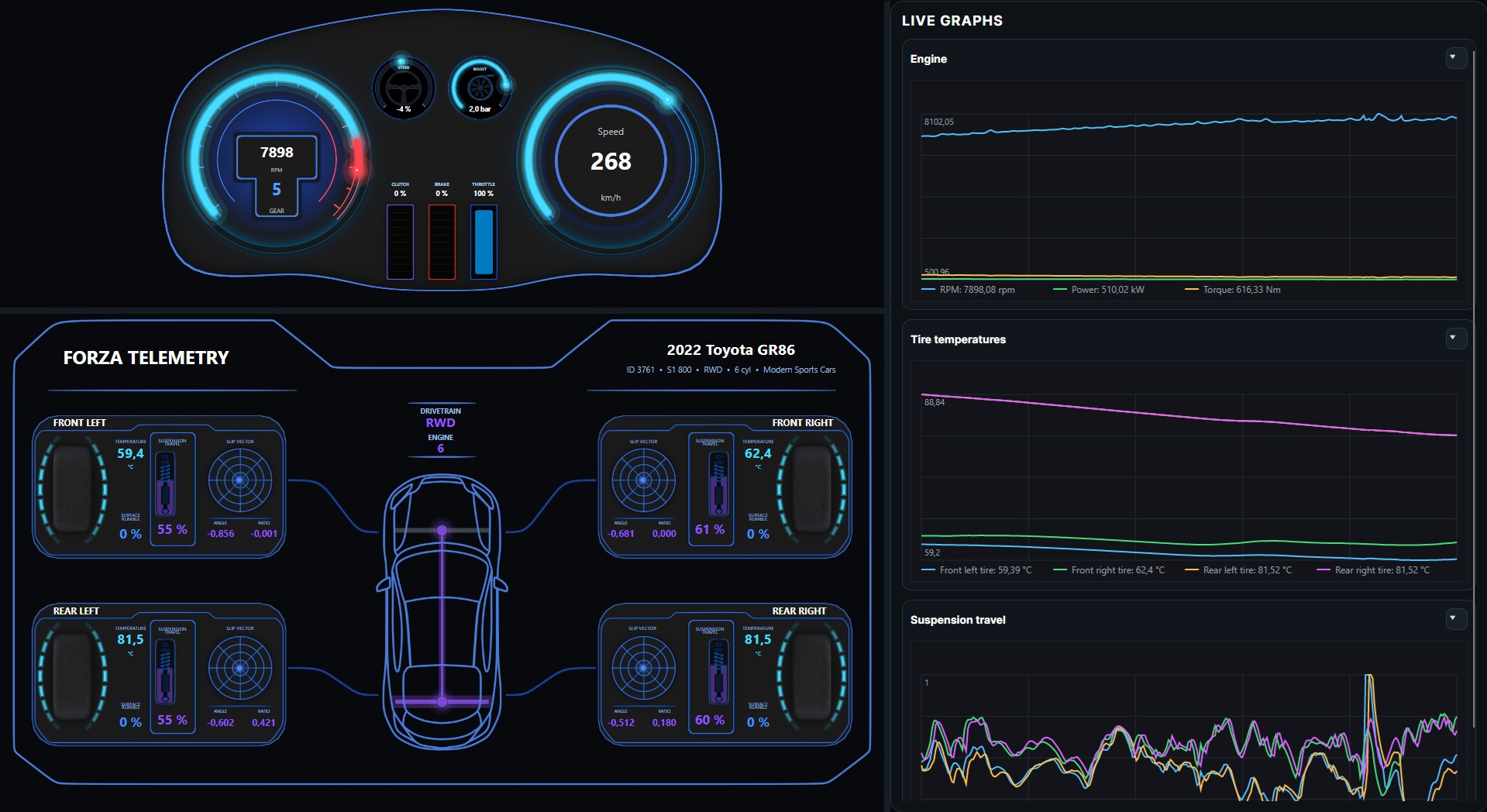
External telemetry dashboard for Forza Horizon.
## Features
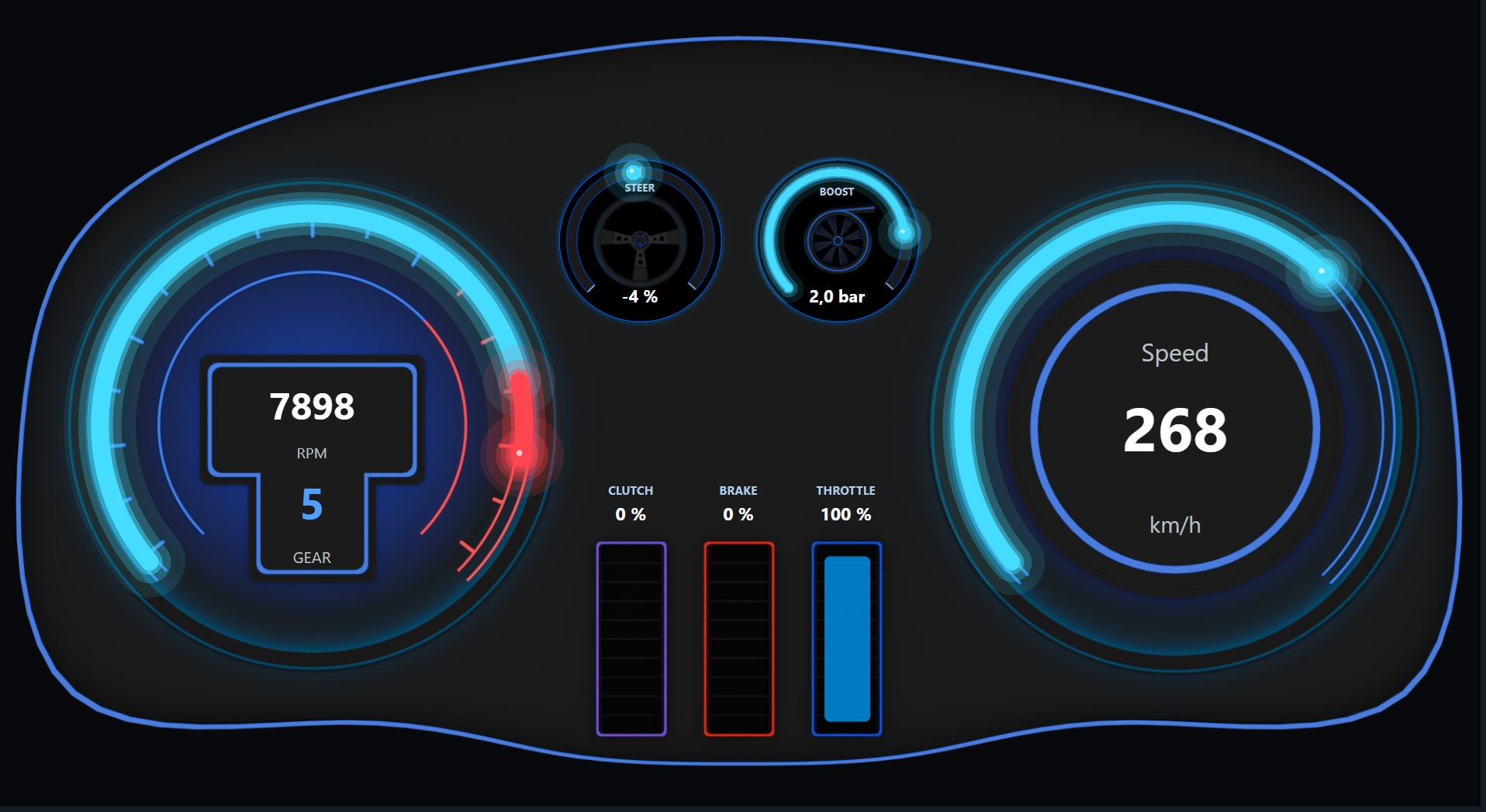
### Vehicle dashboard
Displays RPM, speed, gear, steering, boost, throttle, brake, and clutch telemetry.
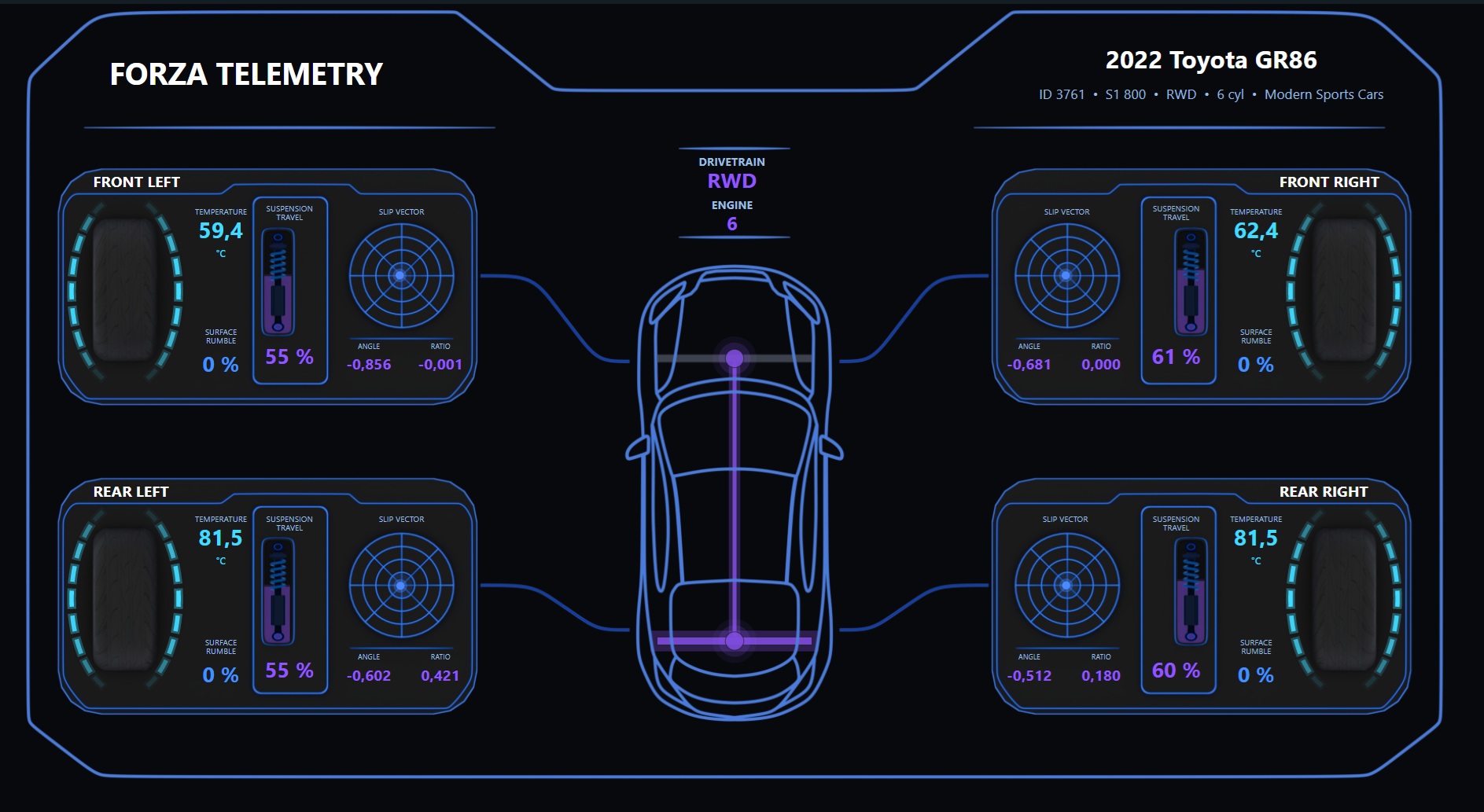
### Vehicle telemetry
Displays tire temperatures, suspension travel, slip vectors and vehicle information.
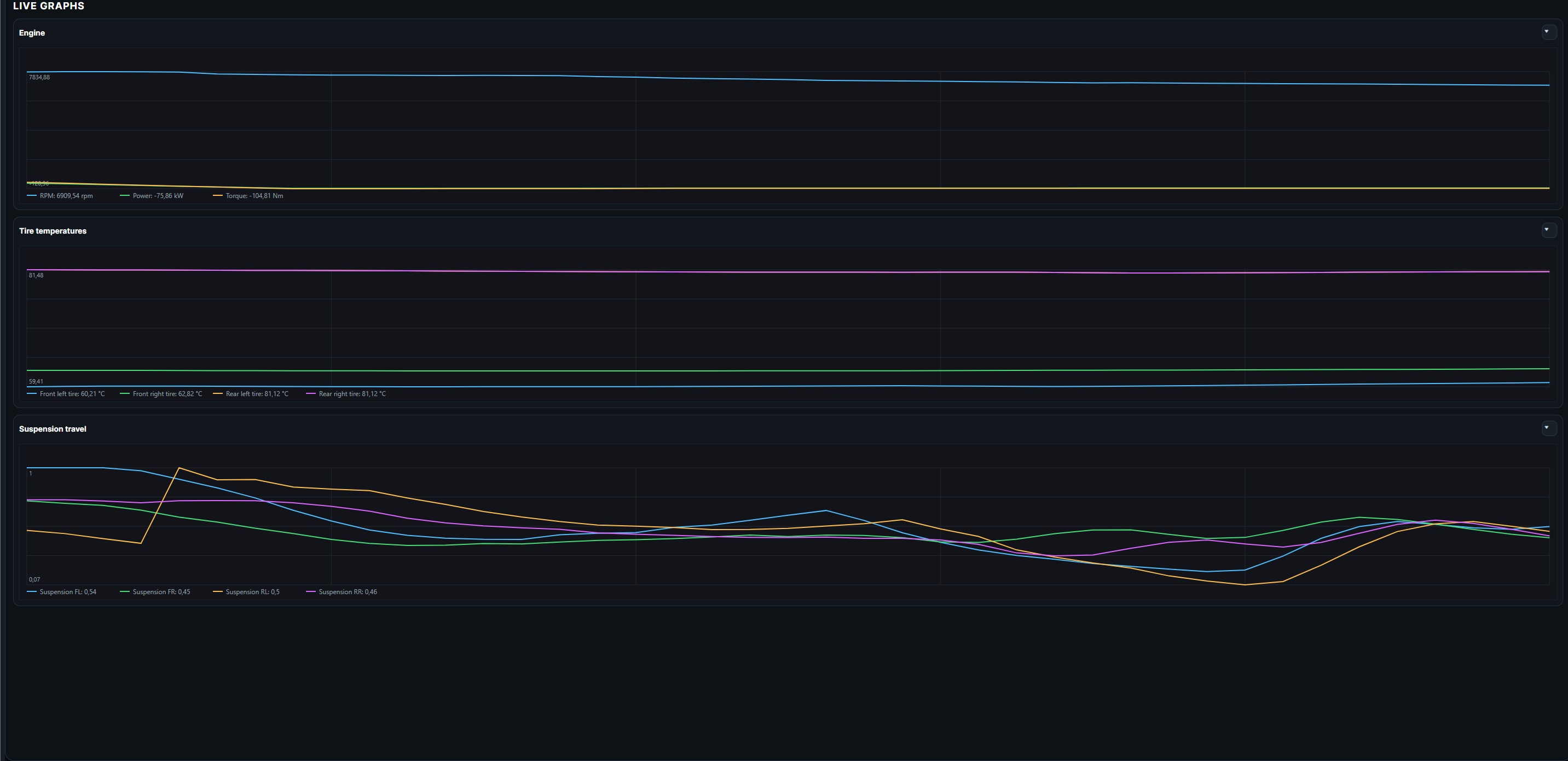
### Live graphs
Displays real-time telemetry history for engine data, tire temperatures, and suspension travel.
## Installation
1. Open the [Releases](https://gitea.vamma.fi/Joona/Forza-Telemetry/releases) page.
2. Download `ForzaTelemetry-v1.0.0-win-x64.zip`.
3. Extract the entire ZIP file to a folder.
4. Open the extracted folder.
5. Run `ForzaTelemetry.exe`.
The application is self-contained, so no separate .NET installation should be required.
Do not run the application directly from inside the ZIP file.
## Forza setup
### 1. Start the telemetry application
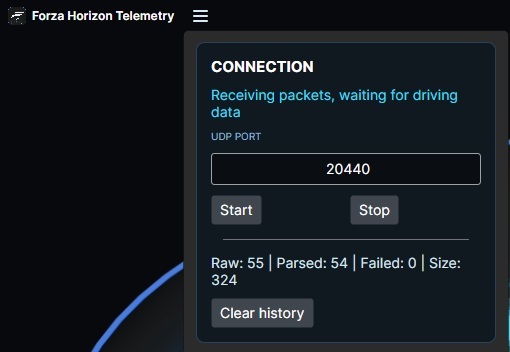
Open Forza Telemetry.
Open the menu from the top-left corner.
Use the default UDP port or enter another port, then press **Start**.
### 2. Open the Forza settings
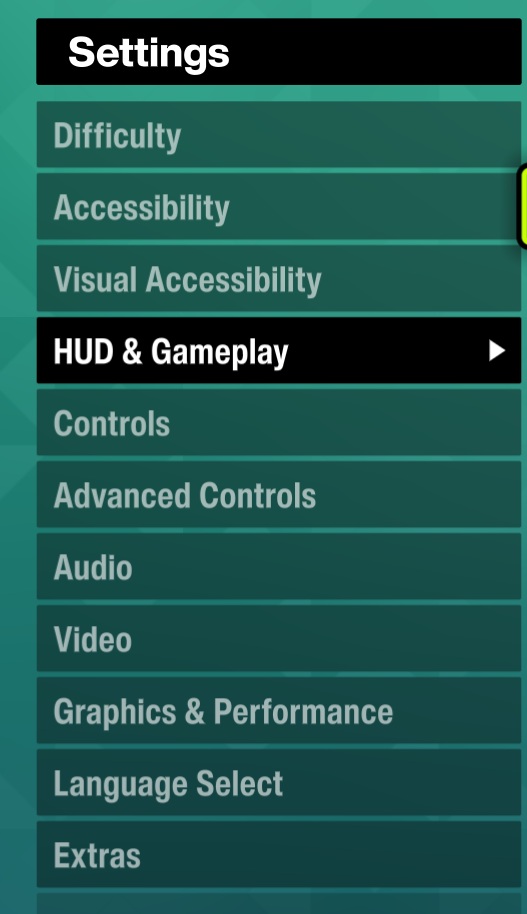
In Forza Horizon, open **Settings** and select **HUD & Gameplay**.
### 3. Enable Data Out
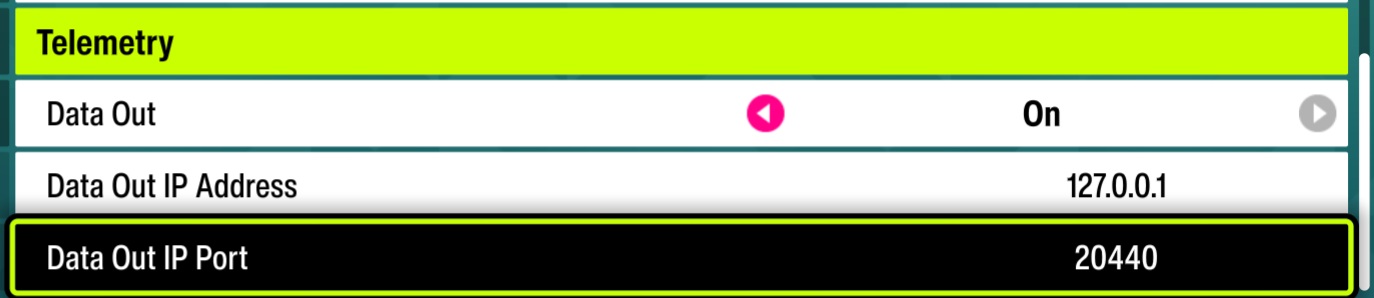
Find the telemetry or Data Out settings and configure:
```text
Data Out: On
Data Out IP Address: 127.0.0.1
Data Out IP Port: 20440
```
The port must match the port configured in Forza Telemetry.
## Known issues
* The rear-right tire temperature may duplicate the rear-left tire temperature. This appears to be caused by the telemetry data provided by the game.
## Disclaimer
This is an unofficial community application and is not affiliated with or endorsed by Microsoft, Xbox, Playground Games, Turn 10 Studios, or the Forza franchise.
## License
This project is licensed under the [MIT License](LICENSE).